If you run an online store, Related Products are one of the simplest yet most powerful tools you can use to increase average order value and keep shoppers engaged. Done well, related products turn a single-item purchase into a multi-product cart — without any extra ad spend. In this guide, we’ll explore how Related Products work in WooCommerce, why they matter for your bottom line, and exactly how to set them up for maximum conversions in 2026.
Key Takeaways
- Related Products can lift average order value by 10–35% with no extra ad spend.
- Use clear categories and tags so WooCommerce picks relevant recommendations automatically.
- Set upsells for premium alternatives and cross-sells for complementary cart add-ons.
- Limit recommendations to 3–6 items and test wording like ‘Complete the Look’ for higher CTR.
- Review and update your linked products quarterly to keep suggestions fresh and in stock.
Table of Contents
- What Are Related Products?
- Why Related Products Matter for Your Store
- How WooCommerce Displays Related Products by Default
- How to Set Up Related Products in WooCommerce
- Best Practices for High-Converting Related Products
- Top Plugins and Tools for Related Products
- Common Mistakes to Avoid
- Frequently Asked Questions
What Are Related Products?
Related Products are product recommendations shown to shoppers on product pages, cart pages, or checkout — designed to complement or substitute the item they’re already viewing. They typically appear below or beside the main product and answer the unspoken question: “What else might I like or need?”
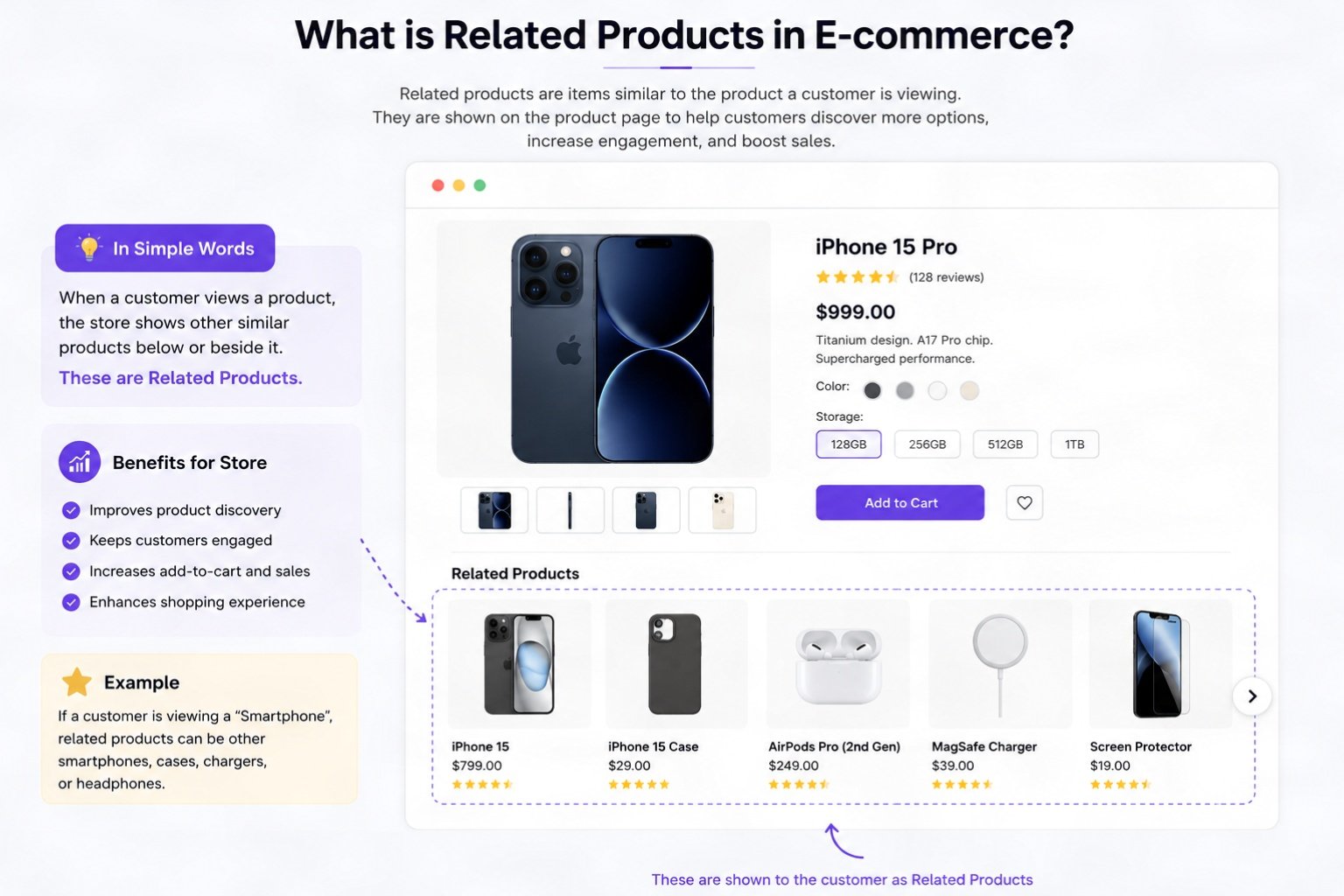
There are three common types of related product recommendations:
- Related Products — Items in the same category or sharing similar tags.
- Upsells — Higher-value alternatives to the current product.
- Cross-sells — Complementary items typically shown in the cart (e.g., a phone case with a phone).
Each of these plays a different role in the buyer journey, but together they form a complete recommendation strategy that mirrors what big retailers like Amazon have used for years to drive billions in additional revenue.
Why Related Products Matter for Your Store
According to McKinsey research, product recommendations drive up to 35% of Amazon’s revenue. While you may not be Amazon, the same psychology applies to small and mid-sized WooCommerce stores.
Here’s why related products deliver outsized results:
- Higher Average Order Value (AOV): Customers add more items per checkout.
- Lower Bounce Rate: Shoppers stay on your site longer when they see relevant suggestions.
- Improved Discovery: Older or less-visible products get more views.
- Better SEO Signals: Increased internal linking helps Google crawl deeper into your catalog.
- Higher Conversion Rates: Personalized suggestions reduce decision fatigue.
If you’re working on conversion optimization, related products should be part of a broader strategy. For a comprehensive plan, check out our WooCommerce CRO checklist.
How WooCommerce Displays Related Products by Default
Out of the box, WooCommerce automatically shows related products based on shared categories and tags. The system picks up to four products by default, displayed below the main product description.
This default behavior is fine for new stores, but it has limitations:
- Recommendations are random within the same category.
- No personalization based on browsing history.
- No control over which products appear together.
- Cross-sells and upsells must be set manually for each product.
If you’re brand new to WooCommerce, our Ultimate WooCommerce Course for Beginners walks you through the entire product setup process step by step.
How to Set Up Related Products in WooCommerce
Setting up related products in WooCommerce is straightforward. Here’s how to do it manually for maximum control.
Step 1: Use Consistent Categories and Tags
WooCommerce uses categories and tags to determine which products are “related.” Organize your catalog with clear, narrow categories (e.g., “Running Shoes” instead of just “Footwear”) and use descriptive tags like “waterproof,” “unisex,” or “summer.”
Step 2: Configure Upsells
Go to Products → Edit Product → Linked Products. In the Upsells field, add products that are higher-priced or premium versions of the current item.
Step 3: Configure Cross-Sells
In the same Linked Products tab, add Cross-sells — these appear on the cart page and should be complementary, lower-cost items that shoppers can quickly add.
Step 4: Test on the Front End
Visit your product page in incognito mode and confirm the recommendations look natural and relevant. Avoid recommending out-of-stock items.
Step 5: Sync with Google Shopping
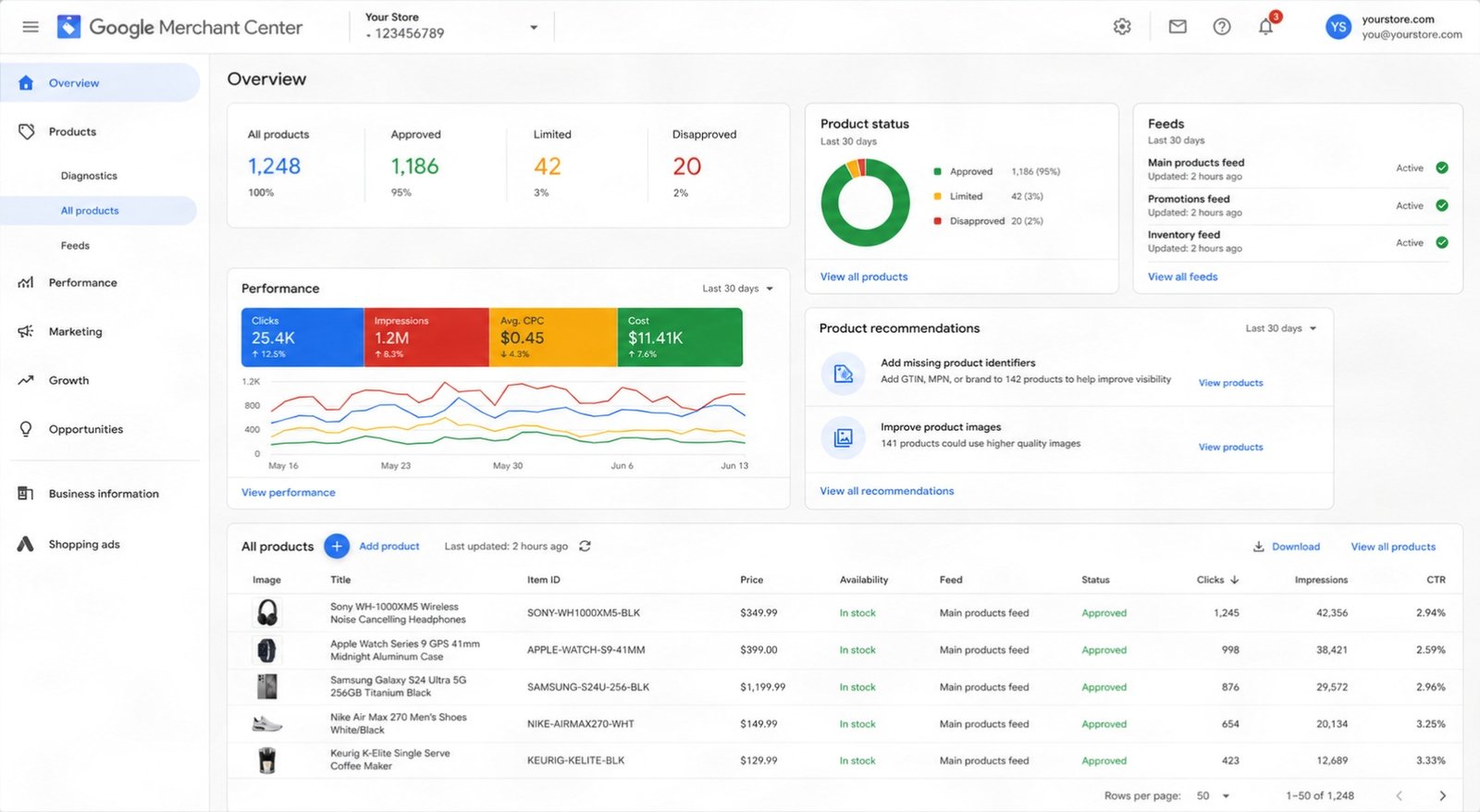
If you’re feeding products to Google, your related products strategy also supports your shopping campaigns. Learn more about feeding your catalog correctly in our guides on Google Merchant Center and Google Manufacturer Center.
Best Practices for High-Converting Related Products
Simply enabling related products isn’t enough. Follow these proven best practices to maximize their impact.
1. Show 3 to 6 Products Maximum
Too many recommendations cause decision paralysis. Stick to 3–6 well-curated suggestions.
2. Match Price Ranges Strategically
For related products, stay within ±30% of the current product’s price. For upsells, go 20–50% higher. For cross-sells, choose items 10–30% of the main product’s price for impulse adds.
3. Use High-Quality Images
Recommendation thumbnails must be visually consistent. Use the same background, lighting, and crop style across your catalog.
4. Personalize When Possible
Use plugins that track browsing behavior and show personalized recommendations. According to Salesforce research, personalized recommendations can lift revenue per visitor by over 25%.
5. A/B Test Placement and Copy
Test different headings like “You May Also Like,” “Customers Also Bought,” or “Complete the Look” — small wording changes can dramatically impact click-through rates.
6. Avoid Showing Items the Customer Already Owns
If a customer is logged in, exclude products from their purchase history. This requires a personalization plugin but pays off in trust and relevance.
Top Plugins and Tools for Related Products
While WooCommerce’s built-in functionality covers the basics, dedicated plugins unlock smarter recommendations. Here are the top categories of tools:
- AI-Powered Recommendation Engines: Tools like Recombee or Nosto use machine learning to personalize suggestions in real time.
- Frequently Bought Together Plugins: Show Amazon-style bundles directly on product pages.
- Upsell Funnel Builders: Trigger one-click upsells after checkout to capture additional revenue.
- Quiz-Based Recommendations: Help shoppers narrow down options through interactive product finders.
For a curated list of conversion-focused tools, see our roundup of the best WooCommerce plugins for high conversions in 2026.
You can also browse the official WooCommerce marketing extensions library for vetted options.
Common Mistakes to Avoid
Even experienced store owners make these related-product mistakes. Avoid them to keep conversions strong:
- Recommending Identical Products: Showing nearly the same item creates confusion, not value.
- Ignoring Mobile Display: Many themes hide related products on mobile — always test responsively.
- Overwhelming the Page: Stacking related products, upsells, and cross-sells all in one view feels cluttered.
- Forgetting to Update: As your catalog evolves, revisit your linked products quarterly.
- Not Tracking Performance: Use Google Analytics 4 or Hotjar to measure click-through and conversion rates on recommendation widgets.
If you’re also running paid traffic, pair your related-product strategy with smart shopping campaigns. Learn the fundamentals in our guide to free Google Shopping listings.
Frequently Asked Questions
How does WooCommerce decide which related products to show?
By default, WooCommerce shows products that share at least one category or tag with the current product. The selection is randomized within those matches.
What’s the difference between related products, upsells, and cross-sells?
Related products are auto-generated from shared categories. Upsells are manually selected higher-value alternatives. Cross-sells are complementary items shown in the cart.
Can I disable related products in WooCommerce?
Yes. You can disable them via a code snippet in your theme’s functions.php file or by using a plugin that controls product page elements.
Do related products help with SEO?
Yes. They increase internal linking, help search engines discover deeper pages, and reduce bounce rates — all of which support better rankings.
How many related products should I display?
Between 3 and 6 is the sweet spot. Too few looks empty; too many overwhelms shoppers and slows down page load.