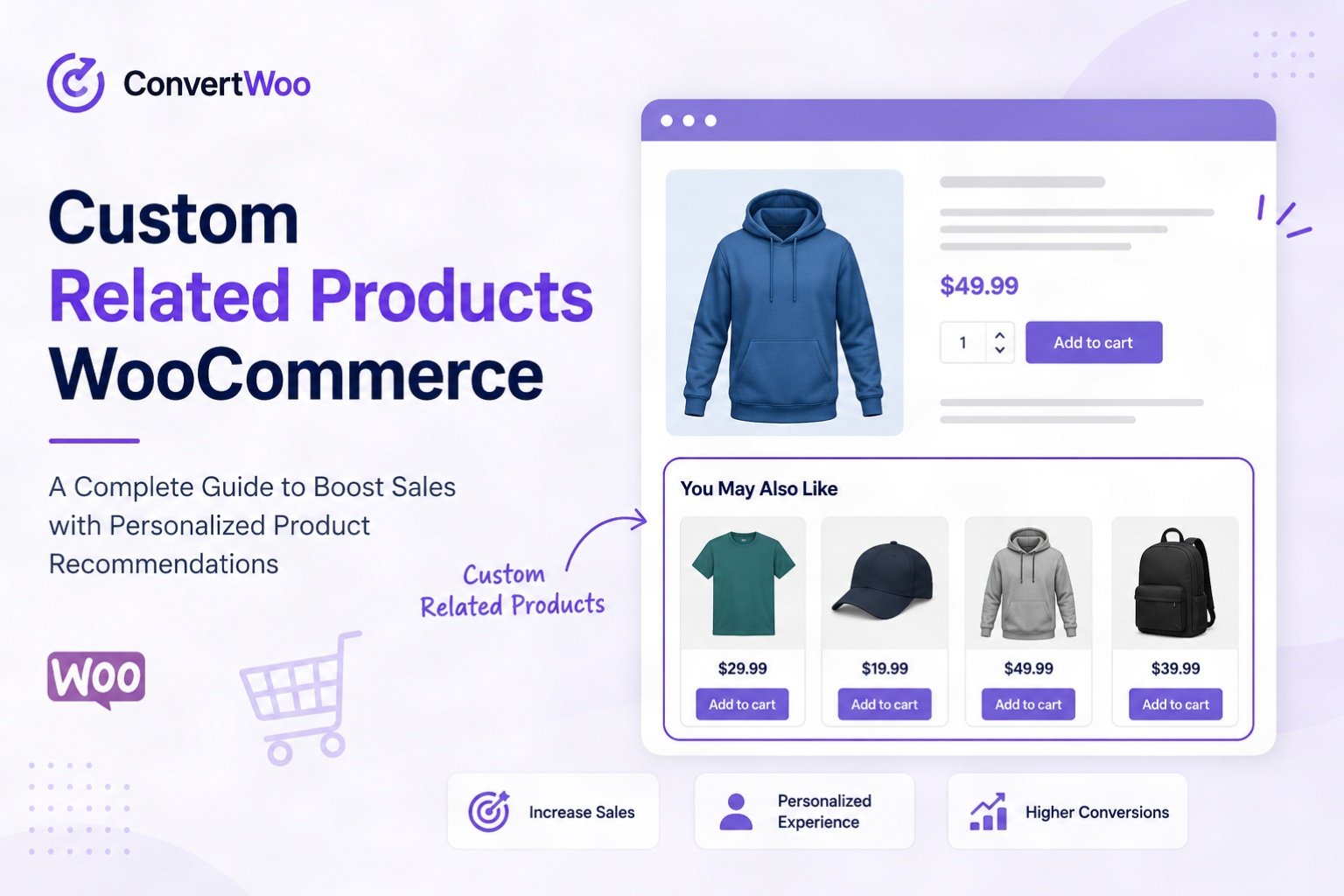
If you want to increase average order value and keep shoppers browsing longer, setting up Custom Related Products for WooCommerce is one of the smartest moves you can make. By default, WooCommerce shows related products based on shared categories and tags — but that rarely matches what real buyers actually want. In this step-by-step guide, you’ll learn how to take full control of which products appear in your “Related Products” section so you can drive more sales with intentional recommendations.
Key Takeaways
- Default WooCommerce related products are random — custom pairings convert significantly better.
- Use a dedicated plugin to override default logic without touching code.
- Manually assign 4–6 complementary products to each of your top 20 bestsellers first.
- Mix price points in your related products to encourage larger basket sizes.
- Track AOV and click-through rates monthly and swap out underperforming pairings.
Table of Contents
- What You’ll Need (Prerequisites)
- Why Custom Related Products Matter
- Step 1: Audit Your Current Related Products
- Step 2: Choose Your Customization Method
- Step 3: Install a Custom Related Products Plugin
- Step 4: Manually Assign Related Products Per Product
- Step 5: Customize the Display and Layout
- Step 6: Test, Track, and Optimize
- Expected Results
- FAQ
What You’ll Need (Prerequisites)
Before diving in, make sure you have these basics in place:
- A working WooCommerce store running WordPress 6.0+ and WooCommerce 8.0+
- Administrator access to your WordPress dashboard
- At least 10–15 products published (so you have enough inventory to cross-link)
- A backup of your site (use UpdraftPlus or your host’s backup tool)
- Optional: a staging environment to test changes safely
- Basic understanding of WooCommerce product editing — if you’re new, start with our Ultimate WooCommerce Course for Beginners
Tools we’ll discuss: a related products plugin (free or premium), Google Analytics 4 for tracking, and your WooCommerce product editor.
Why Custom Related Products Matter
WooCommerce’s default related products logic pulls items that share categories or tags — randomly. That means a customer viewing a $300 leather jacket might see a $5 keychain as a “related” item. Not helpful.
Custom Related Products for WooCommerce let you manually or smartly pair products that genuinely complement each other — like batteries with a flashlight, a charger with a phone case, or coordinating outfit pieces. According to McKinsey research, personalized recommendations can drive up to 35% of e-commerce revenue. For a deeper dive into the strategy, check our guide on Related Products in WooCommerce.
Step 1: Audit Your Current Related Products
Open three or four of your bestselling product pages in a private browser window and scroll to the “Related Products” section. Ask yourself:
- Do these recommendations make logical buying sense?
- Are price points appropriate (not too cheap or too expensive)?
- Are out-of-stock products showing up?
- Are competing products being shown when complementary ones would convert better?
Tip: Make a quick spreadsheet listing each top-seller and 3–5 ideal products you’d want shown next to it. You’ll use this in Step 4.
Step 2: Choose Your Customization Method
You have three main approaches:
Option A: Built-in WooCommerce Upsells & Cross-Sells
WooCommerce already supports manually selected Upsells (shown on the product page) and Cross-sells (shown on the cart page). This is free and powerful but doesn’t replace the “Related Products” widget itself.
Option B: A Dedicated Plugin
Plugins like “Custom Related Products for WooCommerce,” “Related Products PRO,” or “WPC Smart Linked Products” let you override default logic and pick exact products to display.
Option C: Custom Code (Advanced)
Developers can use the woocommerce_related_products filter to programmatically control which products appear. See the official WooCommerce documentation for hooks and filters.
Recommendation for most stores: Go with Option B — it gives the best balance of control and simplicity.
Step 3: Install a Custom Related Products Plugin
For this tutorial, we’ll use a generic free plugin available on the WordPress.org plugin directory. The setup is similar for most options.
- Log into your WordPress dashboard.
- Navigate to Plugins > Add New.
- Search for “Custom Related Products for WooCommerce.”
- Click Install Now, then Activate.
- Go to WooCommerce > Settings > Related Products (or similar tab added by the plugin).
- Enable “Override default related products” and save changes.
Warning: Always test plugins on staging first. Some related-products plugins conflict with caching plugins or page builders. For more vetted options, see our list of the Best WooCommerce Plugins for High Conversions.
Step 4: Manually Assign Related Products Per Product
This is where the magic happens.
- Go to Products > All Products in your dashboard.
- Open the product you want to customize.
- Scroll down to the Product Data meta box.
- Click the Linked Products tab.
- You’ll see new fields added by your plugin — typically labeled “Custom Related Products.”
- Start typing the name of a complementary product and select it from the dropdown. Add 4–6 products total.
- Also fill in Upsells (premium versions) and Cross-sells (cart add-ons) for maximum coverage.
- Click Update.
Pro tip: Mix price points. Include one item slightly cheaper, two at similar price, and one premium upgrade. This creates anchoring and encourages bigger baskets.
Step 5: Customize the Display and Layout
Most plugins let you tweak how related products appear. Look for settings like:
- Number of products shown — 4 to 6 is the sweet spot
- Columns — 4 columns work well on desktop, 2 on mobile
- Section heading — change “Related Products” to something more enticing like “You’ll Also Love” or “Complete the Look”
- Show/hide out-of-stock items — hide them to avoid lost clicks
- Sale badges and discount labels — keep these visible for urgency
Tip: Compelling headings can lift click-through rates by 10–20%. Test different copy and measure the impact.
Step 6: Test, Track, and Optimize
Custom recommendations only work if they actually convert. Here’s how to measure success:
- Set up Enhanced Ecommerce tracking in Google Analytics 4.
- Create a custom event for clicks on related product items (most plugins offer this or you can use Google Tag Manager).
- Monitor average order value (AOV), items per order, and related-product click-through rate weekly.
- A/B test product pairings on your top 10 bestsellers.
- Swap out underperforming pairings every 30 days.
For a complete optimization framework, see our WooCommerce CRO Checklist. And if you’re also running paid ads, learn how to feed these products into Google’s ecosystem with our Google Merchant Center guide and the free listings option in our Is Google Shopping Free guide.
Expected Results
Once you’ve fully implemented Custom Related Products for WooCommerce across your top 20 products, you can realistically expect:
- 5–15% lift in average order value within 30–60 days
- Higher session duration as visitors explore more pages
- Improved internal linking SEO from contextually-relevant product cross-links
- Lower bounce rate on product pages
- Better customer experience through genuinely useful recommendations
Bigger stores running hundreds of SKUs may want to layer in AI-driven recommendation engines later, but starting manual is the fastest path to measurable wins.
Frequently Asked Questions
Do I need to code to set up Custom Related Products for WooCommerce?
No. Modern plugins offer a fully visual interface inside the WordPress dashboard. Coding is only required if you want highly customized logic or display rules.
Will custom related products slow down my site?
If you choose a well-coded plugin and have proper caching enabled, the impact is negligible. Always test your site’s speed with PageSpeed Insights before and after installing.
What’s the difference between related products, upsells, and cross-sells?
Related products are similar items shown on the product page. Upsells are higher-value alternatives to the current product. Cross-sells appear on the cart page to encourage add-ons. Use all three together.
How many related products should I show?
Four to six is ideal. Showing too many overwhelms shoppers and dilutes click-through rates. Stick to your strongest pairings.
Can I automate related product suggestions instead of doing it manually?
Yes — AI plugins use purchase history and browsing behavior to auto-recommend. However, manual curation usually outperforms automation for stores with under 500 products.