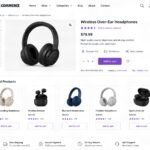
If you want to squeeze more revenue out of every shopper who lands on your store, Custom Related Products for WooCommerce is one of the highest-ROI features you can configure. Instead of letting WooCommerce auto-suggest items based only on shared categories or tags, you take full control — handpicking which products appear together, in what order, and on which pages. Done right, this single tweak can lift average order value (AOV) by 10–30%.
This step-by-step guide walks you through everything: prerequisites, the tools you’ll need, and a numbered setup process you can complete in under an hour — even if you’re not a developer.
Key Takeaways
- Custom Related Products for WooCommerce can lift AOV by 8–15% within 30 days.
- Use built-in Up-sells and Cross-sells for bestsellers — no plugin required to start.
- Show 3–4 complementary or higher-value items, never direct competitors of the current product.
- Position the recommendation block above the long product description for higher visibility on mobile.
- Track clicks and revenue in GA4 and WooCommerce Analytics, then swap underperformers every 2–4 weeks.
Table of Contents
- What You’ll Need (Prerequisites)
- Step 1: Audit Your Current Related Products Setup
- Step 2: Plan Your Custom Related Products Strategy
- Step 3: Choose Your Implementation Method
- Step 4: Install and Configure a Related Products Plugin
- Step 5: Manually Assign Custom Related Products
- Step 6: Style and Position the Related Products Block
- Step 7: Test on Desktop and Mobile
- Step 8: Track Performance and Iterate
- Expected Results
- FAQ
What You’ll Need (Prerequisites)
Before diving into Custom Related Products for WooCommerce, make sure you’ve got the basics in place:
- A working WooCommerce store running WordPress 6.4+ and WooCommerce 8.0+ (newer is better).
- Admin access to your WordPress dashboard.
- At least 10–20 products in your catalog — custom related products only shine when you have enough inventory to cross-sell.
- A recent backup of your site (use UpdraftPlus or your host’s backup tool).
- A plugin budget of $0–$79 depending on the route you pick (we’ll cover free and paid options).
- Basic familiarity with the WooCommerce product editor. New to WooCommerce? Start with The Ultimate WooCommerce Course for Beginners in 2026.
Tip: If you haven’t already optimized your default related products, read our companion piece on Related Products in WooCommerce first — it’ll give you the baseline you’ll improve on here.
Step 1: Audit Your Current Related Products Setup
Open any product page on your live store and scroll to the bottom. You’ll likely see a “Related Products” section populated automatically by WooCommerce based on shared categories or tags. Note the following:
- Are the related products actually relevant?
- Are they higher-priced (good for AOV) or lower-priced (bad for AOV)?
- Are out-of-stock items showing?
- Is the layout mobile-friendly?
Document 5–10 of your bestsellers and write down which products should ideally appear alongside them. This becomes your roadmap.
Quick Audit Checklist
- Identify your top 10 revenue products.
- List complementary items (accessories, refills, upgrades) for each.
- Note the typical price gap between primary and complementary items.
Step 2: Plan Your Custom Related Products Strategy
The biggest mistake store owners make is treating related products as an afterthought. Treat it like merchandising. Pick one of these proven strategies for each product:
- Frequently Bought Together: Show genuine complements (camera + memory card + tripod).
- Upgrade Path: Suggest a higher-tier version of the current product.
- Bundle Builder: Show items that complete a use case (yoga mat + block + strap).
- Replenishment: For consumables, show refills or larger sizes.
Warning: Don’t show direct competitors to the current product. If a shopper is already considering the blue running shoe, showing the red running shoe creates choice paralysis instead of upsell momentum. Nielsen Norman Group research consistently confirms this pattern.
Step 3: Choose Your Implementation Method
You have three solid paths for setting up Custom Related Products for WooCommerce:
Option A: Built-in Up-sells and Cross-sells (Free)
WooCommerce ships with manual Up-sells (shown on the product page) and Cross-sells (shown in the cart). This works great for small catalogs.
Option B: A Dedicated Plugin (Free/Paid)
Plugins like WooCommerce Recommendation Engine, YITH Frequently Bought Together, or Beeketing offer rules, AI-driven suggestions, and conversion-focused layouts.
Option C: Custom Code Snippet
If you’re a developer, you can override woocommerce_output_related_products_args in functions.php to control count, columns, and query logic. Best for advanced stores.
For most owners, we recommend Option A combined with Option B — manual control for bestsellers, plugin automation for the long tail. See our roundup of The Best WooCommerce Plugins for High Conversions in 2026 for vetted picks.
Step 4: Install and Configure a Related Products Plugin
If you’re going the plugin route:
- Go to Plugins → Add New in your WP dashboard.
- Search for your chosen plugin (e.g., “YITH Frequently Bought Together”).
- Click Install Now → Activate.
- Open the plugin settings and configure: number of products to show (3–4 is the sweet spot), discount rules (optional 5–10% bundle discount works wonders), and display position.
- Enable mobile-responsive layout.
Tip: Bundle discounts of 5–10% often increase bundle take-rate by 2–3x without meaningfully hurting margin.
Step 5: Manually Assign Custom Related Products
This is where the real magic happens. For each top-10 product:
- Go to Products → All Products and click Edit on a bestseller.
- Scroll to the Product Data panel and click the Linked Products tab.
- In the Up-sells field, type and select 3–4 products you want shown on the product page. These should be higher-value or complementary items.
- In the Cross-sells field, add items perfect for impulse adds at checkout (small accessories, gift wrap, warranties).
- Click Update.
Repeat for each priority product. Yes, it’s manual — but for your top sellers, the ROI is massive.
Pro Tip: Order Matters
WooCommerce shows up-sells in the order you add them. Put your highest-converting recommendation first.
Step 6: Style and Position the Related Products Block
A beautiful recommendation block that nobody scrolls to is useless. Optimize for visibility:
- Position: Move related products above the lengthy product description if your theme allows. Many shoppers never reach the bottom on mobile.
- Headline: Replace generic “Related Products” with action-oriented copy like “Complete the Set” or “Customers Also Bought”.
- Visuals: Ensure product images are 1:1 aspect ratio and at least 600x600px.
- Badges: Add “Best Seller” or “Bundle & Save” badges for social proof.
Your theme’s customizer or a page builder like Elementor Pro makes this easy without code.
Step 7: Test on Desktop and Mobile
Open three of your top product pages on:
- Desktop Chrome
- iPhone Safari
- Android Chrome
Check that related products load fast, images aren’t cropped awkwardly, prices are visible, and the “Add to Cart” button works directly from the recommendation block (a huge conversion booster). Use Google PageSpeed Insights to confirm the new block isn’t slowing your store.
Warning: Some plugins load heavy JavaScript that can tank Core Web Vitals. If your LCP jumps by more than 0.5 seconds, switch plugins or lazy-load the section.
Step 8: Track Performance and Iterate
You can’t improve what you don’t measure. Set up:
- Google Analytics 4 Enhanced Ecommerce events for “view_item_list” and “select_item” on the related products block.
- WooCommerce Analytics reports for AOV, items per order, and cross-sell revenue.
- A weekly check on which related items are getting clicks vs. ignored.
After 2–4 weeks, swap out underperformers. If you’re also driving paid traffic, pair this with our guides on free Google Shopping listings and Google Merchant Center to amplify each visitor’s value. For broader conversion wins, follow The Ultimate 2026 CRO Checklist.
Expected Results
Stores that properly implement Custom Related Products for WooCommerce typically see:
- +8–15% lift in Average Order Value within 30 days.
- +3–7% improvement in conversion rate due to better product discovery.
- Higher session duration and lower bounce rate on product pages.
- Increased revenue per visitor without any extra ad spend.
According to a Barilliance industry study, personalized product recommendations can drive up to 31% of ecommerce revenue when implemented well. Even a modest version on your WooCommerce store can move the needle meaningfully.
Frequently Asked Questions
What’s the difference between up-sells, cross-sells, and related products in WooCommerce?
Up-sells appear on the product page suggesting higher-value alternatives. Cross-sells appear in the cart suggesting complementary add-ons. “Related products” is the automated section based on shared categories or tags.
Do I need a plugin for custom related products?
No. WooCommerce includes manual up-sells and cross-sells out of the box. Plugins simply add automation, rules, bundle discounts, and prettier layouts.
How many related products should I show?
Three to four is the sweet spot. More than that creates decision fatigue, especially on mobile screens where scrolling matters.
Will custom related products slow down my WooCommerce store?
Manual assignments add zero overhead. Heavy plugins can. Always test Core Web Vitals before and after installing any recommendation plugin.
Can I use custom related products with variable products?
Yes. Up-sells and cross-sells work identically for simple and variable products. The recommendation appears on the parent product page.